
Most design teams skip storyboarding. They jump straight to wireframes and miss the one step that reveals how real people actually feel using their product. That is the gap a UX storyboard fills. And a good template makes it fast to do.
This guide covers everything you need: what a UX storyboard template is, what it must include, the four types, a step-by-step process, the best free tools, and the mistakes that quietly kill good storyboards.
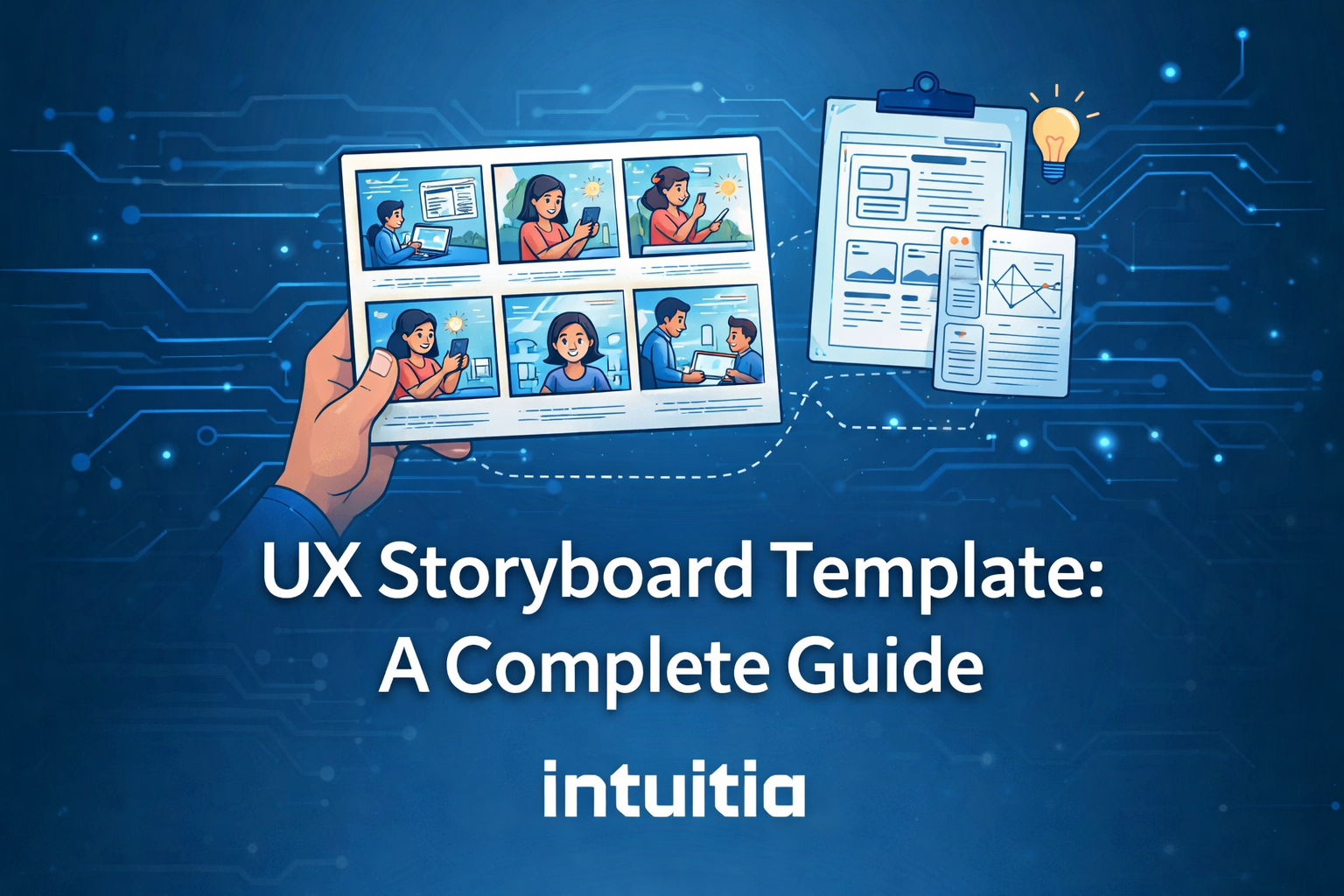
A UX storyboard is a sequence of visual panels that tells the story of a user interacting with your product. Each panel shows one moment in that journey, including what the user is doing, where they are, and how they feel.
It is not a wireframe. Wireframes show screen layouts. A UX storyboard shows human context. It answers: who is this person, what triggered them to act, and what happens at every step along the way?
The technique originally came from film. Walt Disney Studios used it in the 1930s to plan animated sequences before production. UX designers borrowed the idea to plan user journeys before building anything. The goal is the same: understand the full story before you commit resources to it.
Here is why that matters for your team. A storyboard builds shared empathy. A developer, a product manager, and a designer can all look at the same six panels and understand the user's problem without reading a 20-page research report.
A UX storyboard template is only useful if it captures the right information. Most free templates you find online give you blank boxes and nothing else. Here is what a complete template actually needs.
Name the user at the top. Include their role, their main goal, and the context they are in. This keeps every panel grounded in a real person, not an abstract "user."
One or two sentences that set the scene. What triggered this journey? For example: "Maria is a freelancer who missed a payment deadline and needs to find out why." This is the setup for everything that follows.
Each panel represents one moment. Five to eight panels is the sweet spot. Too few and you miss important steps. Too many and the storyboard becomes a chore to read.
Stick figures work fine. Rough sketches work fine. The visual just needs to show the user in their environment, not just the screen. Showing someone sitting in a coffee shop on their phone tells a different story than someone at a desk.
A short note under each panel. What is the user doing? What are they thinking? Keep it to one or two lines.
Add a simple emoji or facial icon to each panel. Happy, frustrated, confused, relieved. This single addition turns a flat process map into something a stakeholder actually connects with.
Note what device or platform the user interacts with at each step. Phone, desktop, in-person, email. This matters especially for products with offline moments.
Add a row at the bottom of each panel to flag friction. This row becomes your list of design opportunities at the end of the session.
Here is a quick reference for what goes in each part:
Not every project needs the same type of storyboard. Choosing the right one saves you time and keeps your team focused on what actually matters right now.
This type zooms out. It covers the full journey, including what happens before and after the user touches your product. A person sees an ad, googles a solution, downloads the app, uses it, and tells a friend. All of that is part of the story.
Use this during the discovery phase of a new product. It is perfect for aligning stakeholders on the broader context before any design work begins. It works well when paired with early UX design consulting to frame the problem properly.
This one zooms in on a specific interaction inside the product. Think: the onboarding flow, the checkout step, the error state. Each panel maps a micro-moment within a feature.
Use this when you are deep in the design process and need to hand off detailed context to developers or test a specific flow with users.
This is exploratory. You use it to pitch an idea before anything is built. It is rough, fast, and intentionally low-fidelity. The goal is to get feedback on the concept, not the execution.
Use this during ideation sessions or client presentations. It is a conversation starter, not a final deliverable.
This type handles complexity. It maps a multi-touchpoint experience that involves both digital and physical moments. Think healthcare appointments, banking visits, or retail experiences. It includes what the user sees and what happens behind the scenes to make it work.
Use this when your product connects to offline events or involves multiple teams delivering one experience.
Here is the full process. You do not need design skills. You need a clear user story and a willingness to be rough and honest.
Start with research. Read through user interview notes. Pull quotes from usability tests. Look at analytics drop-off points. Your storyboard is only as useful as the data behind it.
If you are working on a product that is still in concept stage, check out how to create a persona before you start. A persona gives your storyboard a real person to build around.
Pick one user. Pick one goal. Do not try to cover every scenario in one storyboard. Specificity is what makes storyboards powerful.
Decide which of the four types fits your current stage. Then set your panel count and layout. 16:9 panels work well for desktop products. 9:16 panels suit mobile-first products. Stick to eight panels per page maximum for readability.
This is the most skipped step. And it is the most important one.
Write the sequence as plain text first:
Writing this out forces you to spot missing steps, logic gaps, and assumptions before you invest time in visuals.
Now pick up a marker or open your tool of choice. Draw one sketch per panel. The sketch should show the user in their environment, not just a floating UI screen.
You do not need to be precise. A stick figure in a kitchen holding a phone communicates more than a perfect Figma mockup of an empty screen. Context is the point.
For teams building mobile app UX design, this step often reveals that the experience extends well beyond the app itself.
Go panel by panel and ask: how does the user feel right here? Add the emotion icon. Write one annotation. Flag any friction you noticed while drawing.
This layer is what separates a useful storyboard from a decorative one. Stakeholders remember emotion. They forget bullet points.
A storyboard created alone is half as useful as one created with your team. Share it early. Invite feedback. Update the panels when the research changes.
Storyboards are not final deliverables. They are working documents. Plan to revise them at least once before you use them to inform design decisions.
You do not need to build a template from scratch. Here are the best free options available right now, and what each one is actually good for.
Figma has a large library of community-built UX storyboard templates. They are easy to customize and work inside your existing design workflow. Best for teams already using Figma daily.
Miro offers whiteboard-style templates that are ideal for remote workshops. You can run a collaborative storyboarding session with your whole team in real time. Best for distributed teams.
Boords is purpose-built for storyboarding. It includes fields for scene labels, step numbers, touchpoints, and annotations out of the box. Best for teams who storyboard regularly and want structure built in.
Milanote works well for visual concept storyboards. Its drag-and-drop interface is beginner-friendly and good for early-stage pitching.
PDF and paper templates from sources like NNG and UX Studio are great for in-person workshops. Printing and sketching by hand speeds up the process in early discovery sessions.
How do you choose? If your team is remote, go Miro. If you are already in Figma, stay in Figma. If you storyboard often and need more structure, try Boords. If it is your first time, paper and a marker is genuinely the fastest way to start.
Beyond free templates, here is how the main tools stack up for actual storyboarding work.
Figma integrates storyboarding into the design workflow. You can go from storyboard to wireframe without switching tools. The collaboration features are strong, and most design teams are already familiar with it. The gap is that it is not built specifically for storyboarding, so you will spend time setting up the structure yourself.
Miro is the best option for workshops and cross-functional collaboration. Product managers, developers, and designers can all contribute to the same board simultaneously. It is not a design tool, but for storyboarding that is often a strength. The low-fidelity environment keeps the focus on the story, not the pixels.
Boords handles the full storyboard workflow in one place: scripting, frame creation, annotation, and sharing for feedback. It is the most purpose-built option on this list.
Canva is the right choice when a non-designer needs to create a storyboard for a client presentation. The drag-and-drop interface is fast, and the visual output looks polished without much effort.
Pen and paper still wins for speed in early discovery. No setup. No login. No distractions. If you are running a workshop or need to think fast, start here. You can always digitize it later.
A quick note on AI. Tools like Figma and Miro are starting to add AI features that can generate initial storyboard frames from a brief text description. These are early-stage and not a replacement for real research, but they can speed up the rough drafting step.
These mistakes show up in almost every team that is new to storyboarding. Knowing them in advance saves you a lot of rework.
Mistake 1: Making it too detailed too soon A storyboard is an exploration tool. When teams try to make it pixel-perfect before validating the story, they waste time on visuals that will change anyway. Keep fidelity low until the story feels right.
Mistake 2: Skipping the emotional layer A storyboard without emotion indicators is just a flowchart with pictures. The emotional layer is what makes stakeholders care. Add it every time, even if it feels awkward at first.
Mistake 3: Only showing the happy path Real users get confused, make mistakes, and hit dead ends. If your storyboard only shows the ideal scenario, you will miss the friction points that matter most to your UX conversion rate. Add at least one panel that shows something going wrong.
Mistake 4: Creating it alone Storyboards built by one person in isolation tend to reflect that person's assumptions, not the user's reality. Involve at least one other team member. Disagreements during the process are a feature, not a bug.
Mistake 5: Treating it as a final deliverable A storyboard is a thinking tool. It should change as your understanding deepens. If your storyboard from month one looks identical to your storyboard from month three, something is wrong.
These three tools confuse a lot of teams. Here is the clear difference between them.
The key insight: these tools are not competing. They are complementary. A journey map tells you where the problems are. A storyboard shows you why they happen. A wireframe shows you how to fix them.
Many strong product design processes use all three at different stages of the same project.
Seeing it in practice makes the process much clearer. Here are three short scenarios.
Mobile banking app. A user gets a fraud alert notification at 11pm. The storyboard maps her journey from opening the notification, trying to freeze her card, hitting a confusing confirmation screen, and finally calling support. The storyboard revealed that the in-app freeze feature had a critical gap in its error messaging. That gap was fixed before launch.
E-commerce checkout. A storyboard following a user trying to apply a discount code during checkout showed that the code field disappeared on mobile after the user typed in their shipping address. No analytics data caught it. The storyboard session, done with a close-up template, found it in 20 minutes.
Healthcare appointment booking. A service blueprint storyboard for a telemedicine product revealed that patients expected a confirmation call from a human after booking online. The digital product was not accounting for that offline expectation at all. You can see a similar scenario explored in this telemedicine software development case study.
These examples share something. None of them required a polished storyboard. All three were rough sketches that caught real problems before they became expensive ones.
ements give your team a complete picture of the user experience from trigger to outcome.
Here is the bottom line. A UX storyboard template is not a fancy design artifact. It is a thinking tool. It gets your team out of their heads, aligned on a real user's experience, and focused on the problems that actually matter.
You do not need the perfect template. You do not need drawing skills. You need a persona, a scenario, and six honest panels.
If you are building a product and want a team that uses tools like this from day one, take a look at how Intuitia approaches UX from discovery to delivery. Or if you want to talk through your specific project, the contact page is a good place to start.
Pick your template. Sketch your first panel. The best storyboard is the one that actually gets made.
What is the difference between a UX storyboard and a user story?
A user story is a one-sentence description of a user need, written for developers. Example: "As a user, I want to reset my password so I can access my account." A UX storyboard is a visual sequence that shows the full human context around that need, including emotion, environment, and the steps before and after the product interaction.
How many panels should a UX storyboard have?
Five to eight panels is the standard range. Fewer than five often skips important moments. More than eight makes the storyboard hard to read in a single glance, which defeats its purpose as a quick communication tool.
Do I need drawing skills to make a UX storyboard?
No. Stick figures, rough shapes, and simple icons are completely acceptable. The story matters more than the art. Teams with no drawing experience produce equally useful storyboards as those with trained illustrators.
Can I use Figma for UX storyboarding?
Yes. Figma has community-built UX storyboard templates you can use for free. It works especially well for close-up storyboards that need to sit alongside wireframes and prototypes in the same file.
When in the design process should I create a storyboard?
The big picture storyboard works best at the very start, during discovery. The close-up storyboard fits the middle of the process, during detailed design. The concept storyboard can happen at any time you need to pitch or validate an idea quickly. For teams building early-stage products, storyboarding pairs well with MVP development for startups to validate assumptions before writing a single line of code.
What should a UX storyboard template include?
A complete UX storyboard template includes a persona header, scenario description, five to eight sequential panels, visuals showing the user in context, captions for each panel, emotion indicators, touchpoint notes, and an optional pain points row.



.svg)








.svg)